YOUR FILAMENT, CLEARLY LABELED
Filament Clip Studio
Build a batch of readable labels on your accepted Bambu Lab and Cookiecad clips.
Browser beta · Accepted fit revision 10 Build 0acf177 · 2026-09-24 User guide / how-to Holders & mounting templates Open the Google Sheets CSV builder
See the clips in use
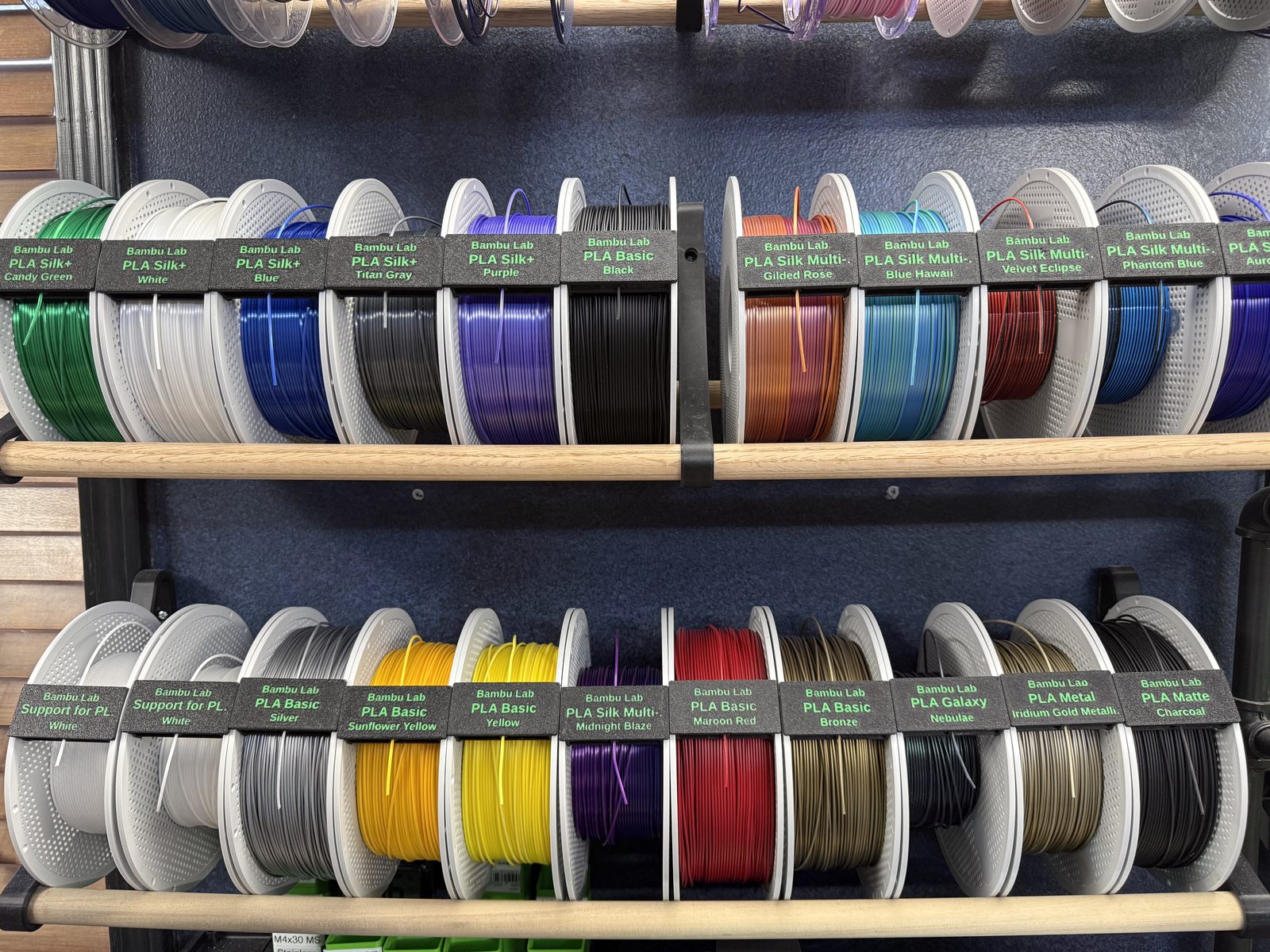 Label clips on spools stored on a shelf.
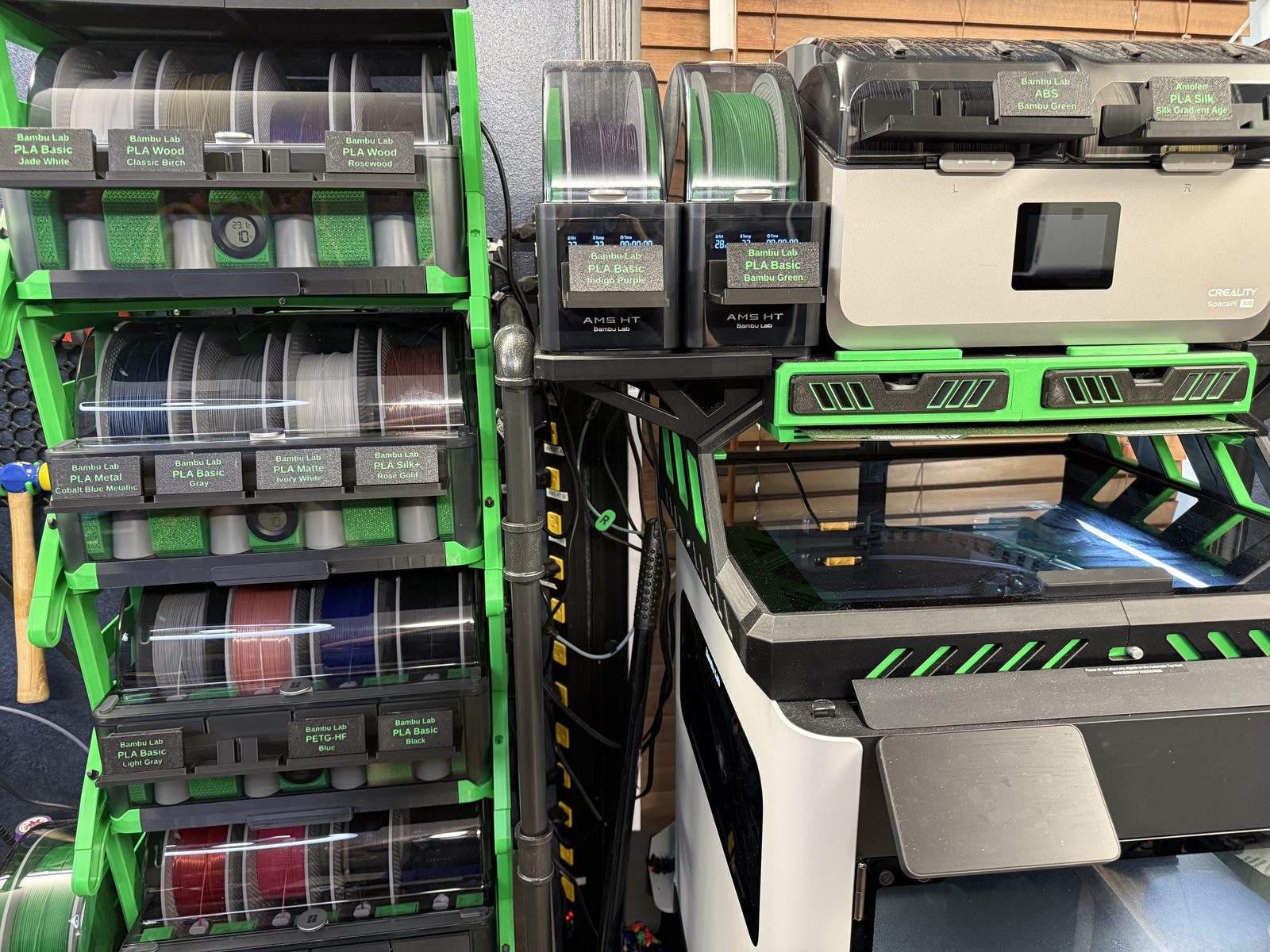 Holders on AMS HT units and a dryer. Get the holders.
Your batches
Printer, styling, and your current draft are saved automatically on this computer.
1. Choose your labels
Spool fit is selected automatically for the manufacturer.
A header row is optional. Columns must be in the order manufacturer, filament type, color/name, quantity. The CSV import action above decides whether rows are added or replace the batch.
CSV columns: manufacturer, filament_type, color_name, quantity. The official catalog is maintained by the author.
Prefer a guided import? Use the Google Sheets CSV builder link at the top of this page. It makes your own copy of the sheet, where you choose valid manufacturer, filament type, and color combinations. Then copy its rows into Paste rows, or download the CSV and use Import CSV.
3. Review before generation
Sleeve clips print text-side down with supports and tunnel blockers. Clips without sleeves retain the standing orientation. Label previews show the face for readability. Download one ZIP containing the complete multi-plate 3MF and an import-ready CSV. Shared filaments combine variants on plates; Actual Filament groups each combination separately. Open in Bambu Studio, assign your printing filaments, and check the sliced label layers.
Browser edition · Files are generated on your device. No account or paid server needed. Saved batches stay in this browser; download CSV backups.