Filament Clip Studio
Build readable, color-aware filament clip labels for the accepted Bambu Lab and Cookiecad clip bodies. The browser edition creates one multi-plate 3MF project and an import-ready CSV on your device.
Quick start
- Add a label row, then choose the manufacturer, filament type, color/name, and quantity. Add as many rows as needed.
- For a larger batch, use the Google Sheets CSV builder. Copy its rows into Paste rows, or download its CSV and select Import CSV in the studio. Choose whether to add the rows or replace the current batch.
- Review the label previews and the plate plan. If a long name is shortened, read the warning and accept the shortened text before generation.
- Choose Generate batch. The download contains one 3MF project with the packed plates and a
Labels.csvcopy of the generated labels. - Open the 3MF in Bambu Studio, confirm the filament assignments and support preview, then slice.
Using the Google Sheets CSV builder
The Google Sheet is a guided way to create valid import rows. Opening the link asks you to make your own copy (a Google account is required); the shared original is view-only. In your copy, open the Labels tab, choose a manufacturer first, then a filament type and a color/name from the matching catalog, and enter a quantity. Every row must show ✓ OK in the Status column, and a batch holds up to 100 clips.
When the batch status reads ✓ Batch ready, the Export CSV button turns green. Click it to open the CSV export tab. The quickest route: select the rows there, copy them, choose Paste rows in the studio, paste and select Import pasted rows. Alternatively choose File > Download > Comma Separated Values (.csv) and import that file with Import CSV.
The builder's Catalog tab loads the studio catalog directly from downloads/catalog.csv on this site, so both always offer the same manufacturer, type and color combinations.
The studio also accepts a CSV made by another tool when it uses the columns manufacturer, filament_type, color_name, quantity.
Holders and mounting templates
Clip holders (one, two or four posts) mount on AMS units, dryers and shelves. Mounting templates center a holder on a specific device: the AMS 2 Pro, AMS HT and Creality SpacePi X4. To print them with your labels, enter your device counts under Holders & mounting templates in the studio: each AMS HT gets a one-post holder, each AMS 2 Pro a four-post holder and each SpacePi X4 two two-post holders, plus one template per device type. They print flat on their own plates. The four-post holder is 320 mm long, so AMS 2 Pro holders need an H2-series or A2L printer. You can also download the STLs from the holders and mounting templates page.
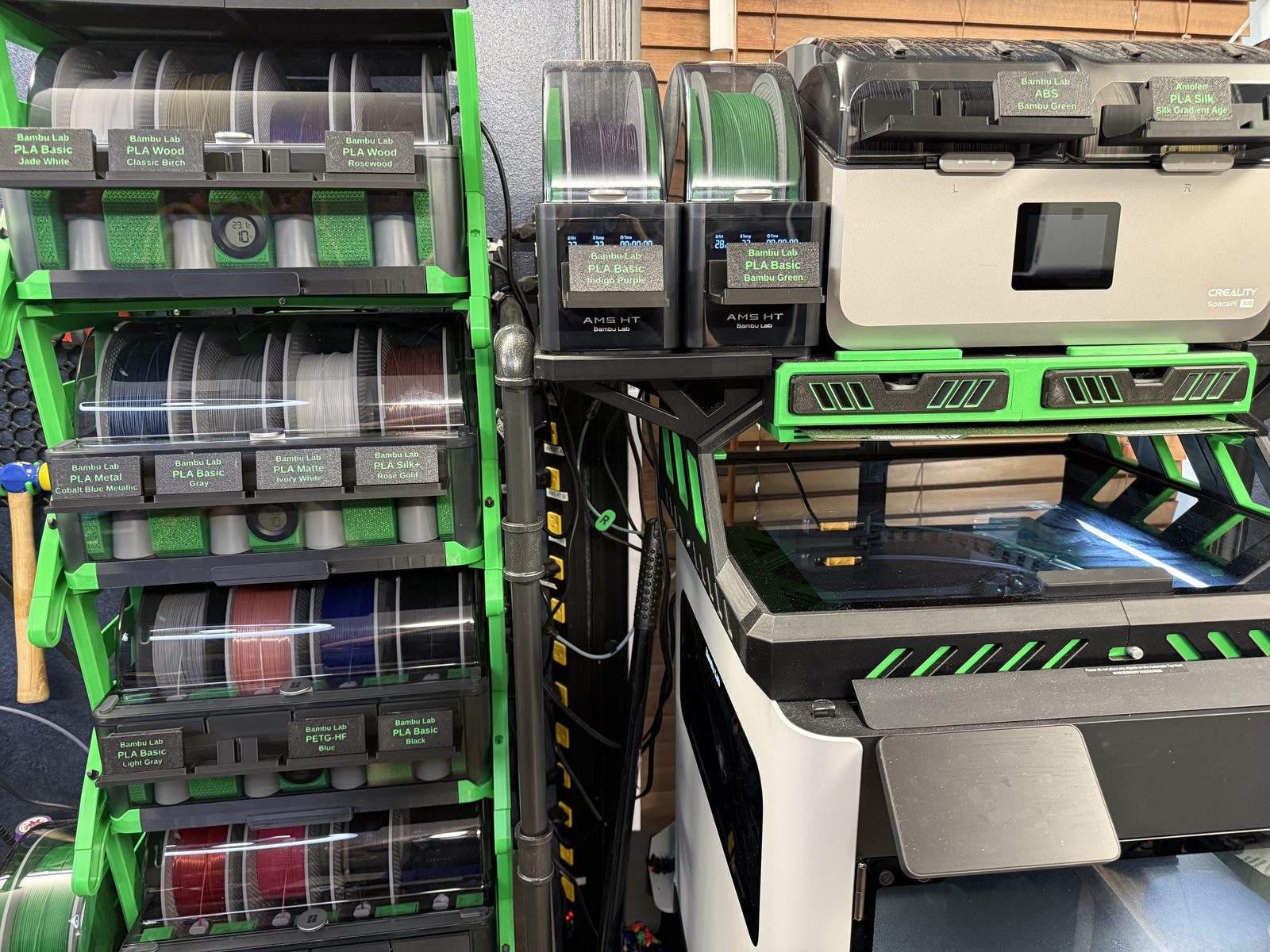
Mounting a holder
- Clean both surfaces, the spot on the device and the back of the holder, with isopropyl alcohol. Let them dry.
- Place the template on the device. It centers the holder on the device.
- Dry-fit first: set the holder in the template without tape and check the position.
- Apply 24 mm double-sided nano tape to the back of the holder.
- Using the template to position it, press the holder onto the device firmly, then remove the template.
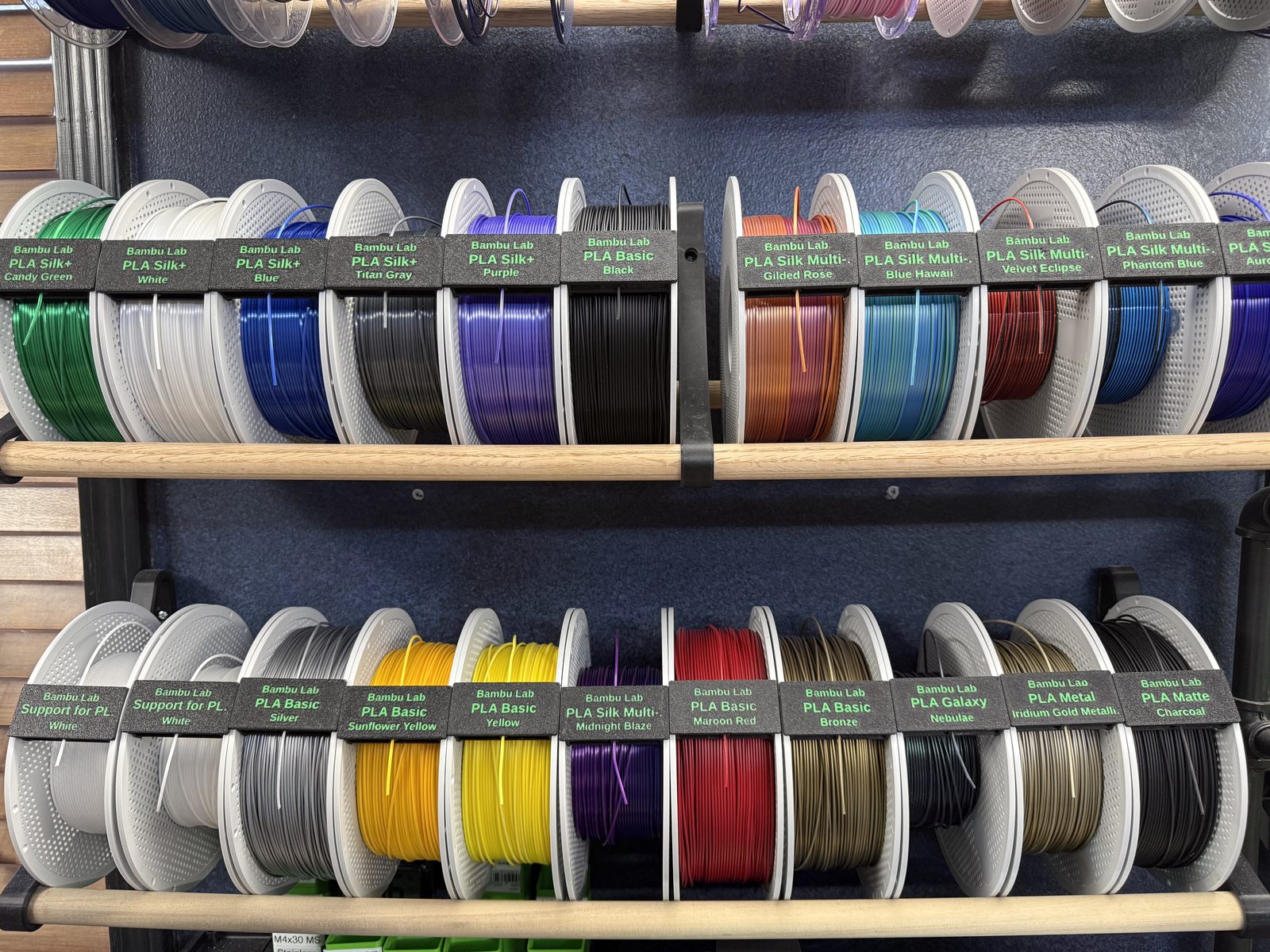
Style the batch
Label style
Choose a flat colored inlay with separate parts, an engraved negative label, or flat color filament modifiers. The 3MF keeps the generated parts selectable for slicer adjustments.
Filament choices
Clip body filament can use one shared filament, which defaults to black, or the catalog filament named on each label. Label text filament can use one shared filament, a contrasting filament, or the catalog filament named on each label. The contrasting shared text choice uses the project’s Bambu Green signature color.
Text sizes
Type field size controls the larger filament type line. Manufacturer field size and Color/name field size accept 0 for automatic sizing. The color/name line is shortened when necessary so it remains within the label width.
Printer and packing
Select the Bambu Lab printer that will be used. The studio uses that plate size and usable area when it packs the batch. Shared-filament batches combine variants to reduce plate count; Actual Filament batches keep each catalog combination grouped for easier color assignment.
Holder sleeves and supports
- Set Holder sleeve to Include holder sleeve. The warning appears immediately.
- Keep the sleeve project’s text-side-down orientation. Do not remove the tunnel blocker.
- In Bambu Studio, inspect the support preview before slicing. The supplied project is configured for the tested support clearance and interface settings, but your material and printer profile can still affect the result.
Clips without a sleeve use the standing orientation and do not need the sleeve support workflow.
CSV validation and long names
Unrecognized manufacturer, filament type, or color combinations are skipped rather than added. After import, the studio reports the skipped CSV row numbers and values so you can correct them and import again.
Names that exceed the available text width are shortened to a readable abbreviation ending in one period. Generation pauses until you review and accept the shortened text.
Troubleshooting
- Nothing imported: confirm the CSV header names and check the import report for row numbers. The official catalog accepts the combinations listed in the studio.
- Text or colors need adjustment: change the style or shared filament choice before generating again. Assign the actual presets in Bambu Studio after opening the 3MF.
- Supports look different: inspect the sliced preview and adjust only after checking the generated support blockers and painted support regions. Sleeves are intended to be printed with supports.
- Need to move a batch: use the downloaded ZIP and CSV as a backup. Saved batches stay in the current browser on the current computer.
Privacy and catalog ownership
Generation runs in the browser; no account or paid server is required. Saved batches remain in that browser. The public application code is open source, while the official manufacturer, type, color, and spool catalog is maintained by the project owner.
Filament Clip Studio · browser edition